



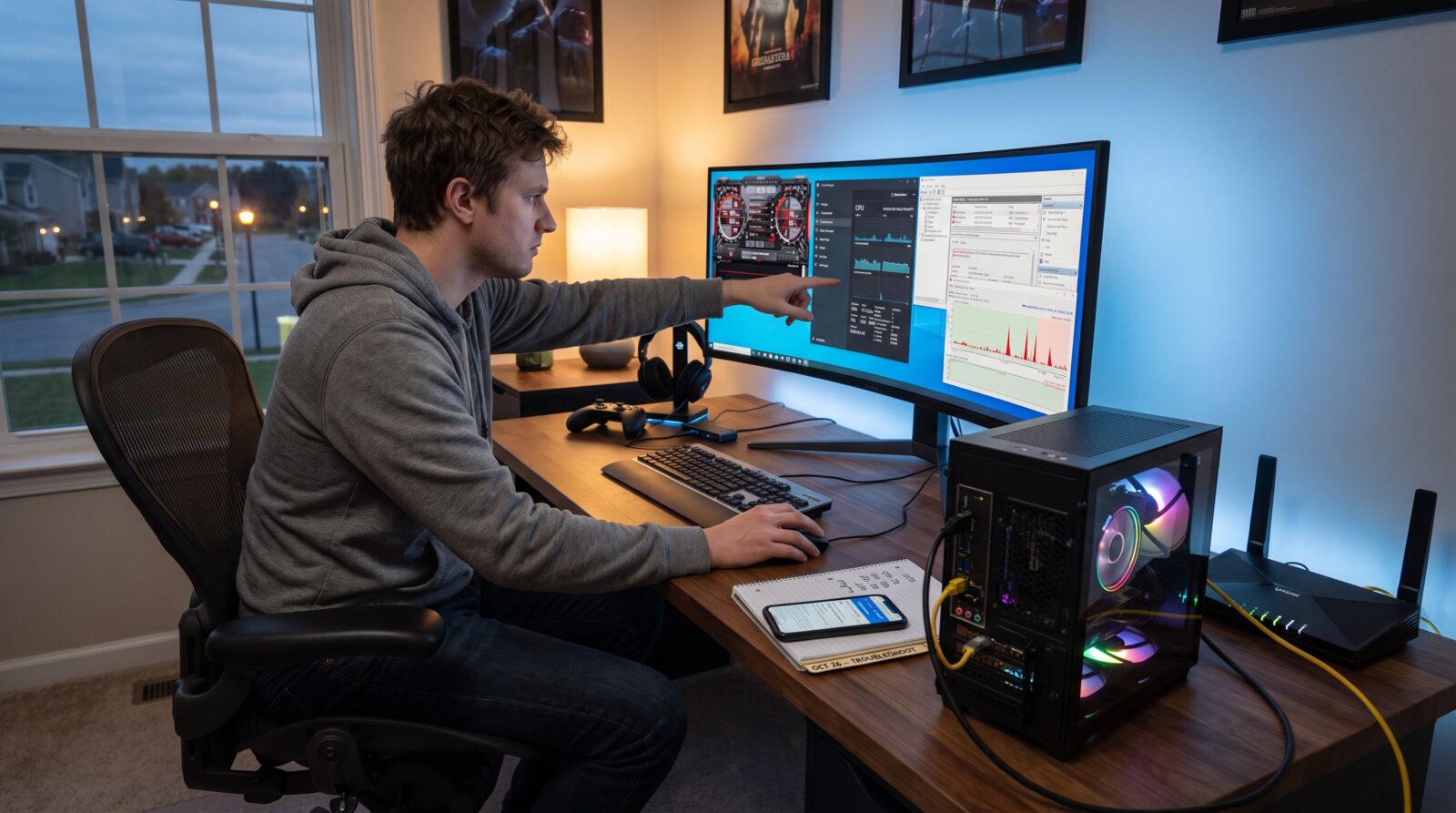

How to Troubleshoot Common Gaming Problems With LyncConf Guides starts with one clear fact: a reproducible baseline halves time-to-fix. Players who record a working CPU/GPU/ping snapshot, enable game logs, and run a quick speed test create the evidence technicians need. This article gives focused checks and step-by-step fixes for latency, performance drops, audio and controller errors, and crashes. Each section opens with the decisive answer, then shows tools, exact commands or tests, and one honest pitfall that often wastes hours.
Key Takeaways
- Establishing a reproducible baseline with CPU/GPU usage, ping, and logs is crucial for troubleshooting common gaming problems effectively.
- Using wired Ethernet connections and managing local network traffic significantly reduces latency and packet loss in online gaming.
- Updating drivers, monitoring GPU temperatures, and removing heavy mods help prevent performance drops and stutters during gameplay.
- Verifying audio devices and testing them in simple apps can quickly resolve voice chat and controller input issues.
- Checking game file integrity, ensuring system requirements, and isolating mods or recent updates are essential steps to fix game crashes and launch errors.
Diagnose Your Setup Quickly: Tools, Baselines, And Logging
Answer: Start with baselines and logs, they point directly to the faulty layer. Record a 60‑second sample of CPU, GPU, RAM, temperature, and network ping while the game behaves normally. Use Task Manager or Resource Monitor on Windows and tools like MSI Afterburner for FPS and GPU usage. Run a 10‑second packet capture with a lightweight tool when you see lag spikes to verify packet loss.
Context and steps: 1) Capture a baseline: open the game, note CPU/GPU% and temperatures, write the average ping to your game server. 2) Enable game logs and launcher logs (Steam, Epic, or the game’s native client). 3) Run an internet speed test and a 60‑second ping (use pingplotter or a simple ping -t) to the game server IP. 4) Save logs and screenshots to a timestamped folder.
Tools and exact checks: – Windows: Resource Monitor, Event Viewer, and MSI Afterburner. – Network: ping, tracert, or pingplotter for packet loss graphs. – Game: enable verbose logging in the launcher and check the last 3 log entries after a problem.
Common mistake (vulnerable moment): A player once spent two evenings reinstalling a game when the crash was a GPU driver spike flagged in Event Viewer. If logs show repeated GPU timeouts (TDR), test with a driver rollback before reinstalling the game.
Related resources: For a broader collection of walkthroughs and reference guides, consult the LyncConf gaming resources hub at gaming resources.
Fix Connectivity And Latency Issues — Home Network To ISP
Answer: Prefer wired Ethernet, isolate local bandwidth hogs, then use test data to escalate to the ISP. A wired connection typically reduces jitter and packet loss immediately.
Quick fixes: 1) Plug the PC or console into Ethernet. 2) Close streaming, cloud backups, and large downloads on other devices. 3) Restart the router and modem: reboot the gaming client. 4) Configure router QoS to prioritize gaming ports and the device MAC address.
Network diagnostics: Run a 2‑minute ping to the game server and note packet loss percentage. If you see >1–2% packet loss or regular RTT spikes greater than 100 ms, gather 2–3 samples at different times and contact the ISP with results. Verify firewall and NAT type, strict NAT/ symmetric NAT can cause voice and matchmaking issues.
Ports and rules: Confirm the game’s published UDP/TCP ports in the game support docs. Temporarily disable third‑party firewalls and test again. If disabling fixes the issue, add explicit rules rather than leaving the firewall off.
Real example and lesson: A streamer thought their ISP was at fault until router QoS had been turned off by a firmware update: re‑enabling device priority dropped latency from 120 ms to 28 ms. If problems persist across multiple games and devices, share the ping logs with the ISP.
Related links: For setup guidance and deeper networking tips specific to gamers, reference the site’s setup guide for serious players at ultimate setup guide.
Resolve Performance Drops, FPS Stutters, And Overheating
Answer: Update drivers, test a clean profile, and monitor temperatures, then reduce settings or remove heavy mods. Most stutters come from thermal throttling or oversized texture packs.
Stepwise checks: 1) Update GPU drivers from NVIDIA or AMD. 2) Run the game on default or a fresh profile to remove mod interference. 3) Use MSI Afterburner to log FPS, GPU clock, and temperature for a 5‑minute play session.
Specific thresholds and actions: If GPU temperature exceeds 85°C sustained, stop and check airflow, dust, and fan curves. If frame times spike but average FPS stays similar, test with a 60 FPS cap, capping often smooths frame delivery and reduces microstutters.
Mod and asset guidance: Large texture packs can increase VRAM use beyond the card’s capability. For example, a 6 GB GPU with a 4 GB texture pack will cause frequent stutters. Test by removing the mod or switching to lower texture presets.
Honest warning: One player repeatedly blamed the game until they found a background miner using 40% GPU. Use Task Manager to spot unexpected GPU load and remove unknown software.
Further reading: Players wanting a complete hardware and configuration checklist will find the site’s configuration and troubleshooting articles helpful, including a deep dive on mods at mods guide.
Troubleshoot Audio, Voice Chat, And Controller/Input Problems
Answer: Verify the active device in both the OS and the game, then test the device in a simple app to separate system problems from game bugs.
Fast checks: 1) In Windows Sound settings, confirm the correct output and input device. 2) In the game and in any voice client, set the same device explicitly. 3) Use a basic recorder app or Windows Sound Test to confirm microphone pickup and speaker output.
Controller steps: For controllers, open Device Manager, update the controller driver, and test in the OS gamepad tester or steam Big Picture to confirm button mapping. Disconnect extra USB hubs and Bluetooth devices to rule out interference.

Voice chat and ports: If voice chat drops or is one‑way, verify UDP ports used by the communication client and check for QoS rules that deprioritize UDP. Background apps that throttle audio codecs (cloud backups, VOIP bridges) can cause choppy audio.
A real mistake: One user kept muting themselves in Discord without realizing an automatic push‑to‑talk toggle was enabled in the voice client. Always test voice in a short recording and in the in‑game sound test before blaming hardware.
Helpful link: For guidance on finding and using LyncConf features while gaming, see the quick how‑to on locating game guides at find game guides.
Fix Crashes, Error Codes, And Failed Game Launches
Answer: Verify files, check minimum system components, then isolate mods or recent updates. Crashes often follow a bad update or a corrupted file.
Steps to resolve: 1) Use the platform client (Steam, Epic) to verify integrity of game files. 2) Check Event Viewer or the game log for error codes and note the module name (e.g., d3d11.dll or ntdll.dll). 3) Confirm DirectX, Visual C++ redistributables, and system RAM meet the game’s requirements (many modern titles recommend ~16 GB RAM).
Mod rollback and testing: Disable mods and restore a known stable configuration from backup. If the crash stops, reintroduce mods one at a time to find the culprit. Keep a copy of working load orders and version numbers to avoid repeat breakage.
Driver and dependency checks: Roll back recent GPU driver updates if crashes start immediately after a driver change. If logs show a DirectX error, reinstall the platform’s DirectX runtime.
Vulnerable example: A player installed a patch and then immediately tested a 30‑mod loadout: the new patch changed API calls and one mod caused a launch failure. Keeping a stable backup saved hours.
Related reading: For tips on locating reviews and troubleshooting walkthroughs across the LyncConf network, check the browsing guide at browse reviews.
Conclusion
Use measurement before change: baselines, targeted network tests, log review, and stepwise configuration changes. That method isolates whether the issue lives in the router, OS, driver, mod, or the ISP. Players who adopt this diagnostic discipline save hours and can escalate with clear evidence. For a full set of tools, reviews, and community resources that support these steps, LyncConf maintains an extensive hub of gaming guides and references.