



How Games LyncConf Works is a concise manual for organizers, developers, and players who want to run or join virtual game conferences. It explains core concepts, the typical setup flow, device requirements, and the platform’s role in modern gaming workflows. Readers will get concrete next steps: create an account, configure devices, plan rooms and moderation, and apply security checks so sessions run smoothly and reliably.
Key Takeaways
- Games LyncConf combines live conference features with multiplayer gaming to create an interactive platform for developers, players, and organizers.
- Creating an account, configuring devices, and planning sessions with proper moderation are essential steps to ensure smooth and secure conference sessions.
- The platform’s AI matchmaking and themed rooms enhance networking and demo experiences by connecting attendees based on roles and interests.
- High-quality voice, video, and real-time translation support help facilitate global discussions during panels and tournaments.
- Using integrations with tools like Slack and Discord streamlines communication and follow-up tasks post-event.
- Organizers improve event reliability by running rehearsals, enforcing strong security measures, and using standardized templates for session management.
What Games LyncConf Is And How It Fits Into Your Gaming Workflow
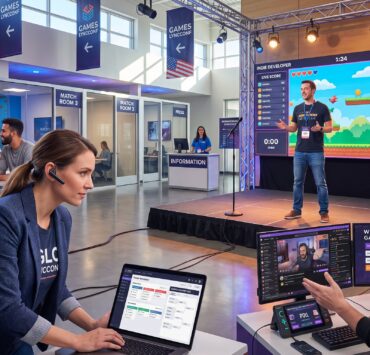
Games LyncConf is a hybrid platform that combines live conference tools with multiplayer-style interaction for gamers, developers, and industry professionals. It functions as a conference hub and a gaming environment: organizers stage keynotes and panels in virtual auditoriums, hosts run tournaments in game lobbies, and attendees network via avatar-driven spaces. For a game developer preparing a product demo, LyncConf replaces a standard webinar by adding live playtests and AI matchmaking that pair press and devs for 15-minute demos.
How it fits day-to-day: product teams use LyncConf to schedule timed demos, allocate QA scrim rooms, and collect session recordings for post-event analysis. Streamers use it to run community scrimmages and fan Q&A with low-latency voice. Event managers schedule sessions and invite participants with role-based permissions, which keeps large events organized.
Practical example: a publisher running a 6-hour showcase can open three themed rooms (indie demos, multiplayer tests, developer panels) and let attendees move between them like physical booths. That setup shortens follow-up tasks: session recordings and chat logs centralize feedback, reducing post-event triage by measurable amounts, often saving organizers several hours per day during the week after an event.
The links between hosting articles, competitive-event coverage and practical guides show how LyncConf gaming topics fit together across the editorial website.
Setting Up An Account, Creating Or Joining A Game Conference, And Connecting Devices
Create an account by registering with email, verifying identity, and filling profile fields such as gaming IDs and role (player, developer, organizer). Organizers then create events, add sessions, and generate invite links or access codes. Attendees join through the event portal, pick sessions, and enter lobbies. This flow minimizes friction: organizers can preassign roles, and attendees skip manual configuration when logging in with linked gaming accounts.
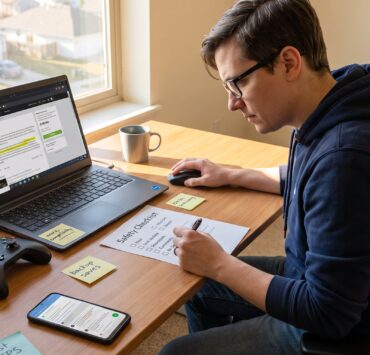
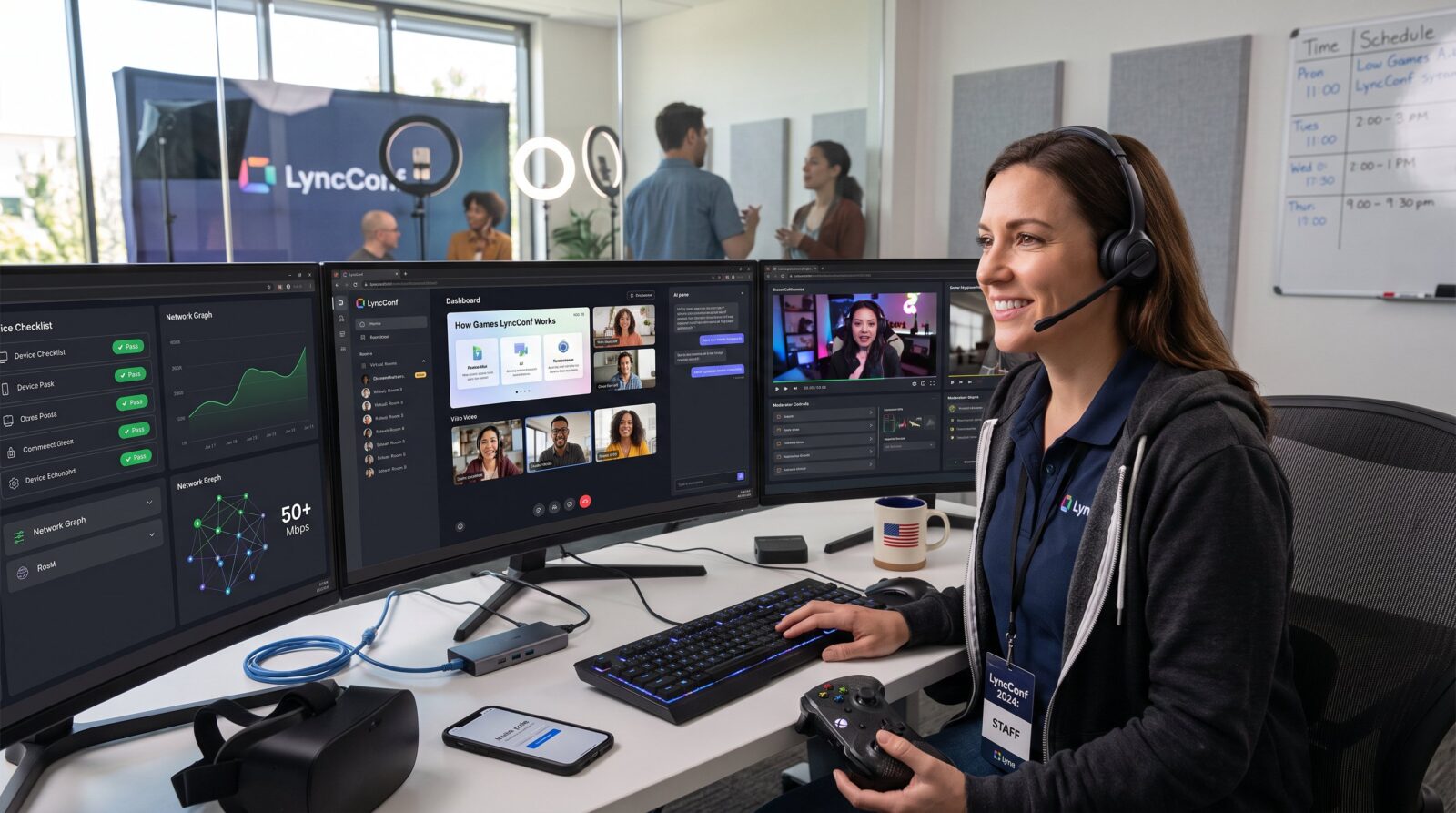
Device checklist: a Windows PC with a modern GPU, DirectX 12 drivers, and ~16 GB RAM provides the smoothest experience. For reliable streaming and voice, use wired Ethernet and target at least 50 Mbps download/upload for high-quality video and simultaneous game interaction. VR users should test headset firmware and spatial audio before entering shared rooms.
Audio/video setup steps: open client settings, select microphone and webcam, toggle hardware acceleration, and run an echo test. If a participant uses external input devices (game controllers, MIDI controllers for music demos), enable them in input settings and confirm bindings in a brief sound-check room.
A reader who is starting with LyncConf reviews lists and guides should treat account or event-management claims as article content to verify, not evidence of a proprietary service.
Core Features Explained: Rooms, Matchmaking, Voice/Chat, Moderation, And Integrations
Rooms: LyncConf uses themed rooms, keynote, expo, tournament, and casual lobbies, that support HD video, screen share, and interactive overlays. Rooms can host live demos, synchronized playtests, or exhibitor booths with clickable assets. Organizers often pin a session agenda and resource links inside each room so participants know when a demo or panel starts.
Matchmaking: AI matchmaking pairs attendees by role, interest tags, or play style. For example, a developer searching for playtesters with at least 200 hours in a genre can be matched to appropriate testers for 20-minute sessions. The platform’s matchmaking reduces manual coordination and increases high-value meetings per hour.
Voice and chat: LyncConf supports high-bitrate voice channels, low-latency video, and persistent text chat with thread support. Real-time translation for more than 30 languages is available in certain deployments, enabling cross-country panels without separate interpreter streams.
Moderation: Hosts get granular controls, mute, remove, lock rooms, and moderate chat. Organizers can appoint co-moderators and configure auto-moderation rules (banned words, link filters). For tournaments, referees use instant replay and session logs to adjudicate disputes.

Integrations: The platform provides APIs and connectors for common tools. Teams often link LyncConf with task messaging apps and game stores. For team coordination and community follow-up, integrations with Slack and Discord streamline alerts and session summaries. Developers can also connect game launchers to coordinate match invites and session tokens. Documentation on advanced collaboration and communication covers integration patterns and best practices.
Troubleshooting, Best Practices, And Security Tips For Smooth LyncConf Sessions
Quick troubleshooting: first verify device permissions and restart the client if audio or video freezes. Run a network test and aim for ping under 100 ms and low packet loss. If screen sharing stutters, reduce resolution to 1080p and enable hardware acceleration. Closing heavy background applications often drops CPU use by 30–50% and stabilizes streams.
Best practices: provide a clear agenda and assign moderators to each room. Run a 15-minute technical rehearsal that covers voice checks, screen share, and account roles. Use templates for session descriptions and standardize file naming for recorded clips, this saves editors and post-event analysts hours when compiling highlight reels.
Security tips: require authenticated entry, use per-session access codes, and lock rooms after all participants arrive. Keep the client updated and avoid sharing sensitive files in public channels: organizers should distribute private assets via secured channels. Strong password policies and secure Wi‑Fi (WPA3 where available) protect accounts and data. Also, configure recording consent prompts to comply with privacy laws and attendee expectations.
LyncConf’s mix of reviews, game lists and practical guides extends from game discovery to performance and setup posts. Hardware and network details still need confirmation from current external documentation.
Conclusion
Games LyncConf merges event management with multiplayer interaction to support demos, tournaments, and professional networking. By following account setup steps, optimizing devices and network settings, using rooms and matchmaking intentionally, and applying moderation and security practices, teams can run dependable, engaging online game conferences. Organizers who rehearse, assign moderators, and use integrations for follow-up will see fewer disruptions and better outcomes for both players and industry attendees.