



Game Settings and Optimisation Guides on LyncConf explain how to tune options so hardware, network, and player needs align. The guides show precise steps to raise FPS, cut input lag, and preserve visual clarity. Readers find clear workflows, platform-specific controls, and maintenance actions that reduce crashes and overheating. This article points to practical tweaks for PC, console, and mobile and helps players choose between higher frame rates or better visuals based on measurable trade-offs.
Key Takeaways
- Game settings directly impact performance and player experience by balancing hardware load, visual quality, and input responsiveness.
- Using the right graphics settings like native resolution, exclusive fullscreen, and turning off motion blur can significantly increase FPS and reduce input lag on PC.
- Consoles and mobile devices offer performance versus quality modes; selecting performance mode improves FPS but may reduce visual fidelity or battery life.
- A practical optimization workflow includes setting an FPS target, identifying bottlenecks, adjusting graphics starting from resolution and shadows, then fine-tuning textures and effects.
- Regular maintenance such as updating drivers, monitoring temperatures, and cleaning hardware helps sustain performance and prevent crashes.
- LyncConf’s game settings and optimisation guides provide clear, actionable steps for tuning settings to align with hardware and player priorities for a smoother gaming experience.
Why Game Settings Matter For Performance And Player Experience
Settings affect how a game uses hardware and how play feels. Resolution, shadows, field of view, motion blur and sensitivity involve trade-offs between clarity, comfort and performance. Those choices connect practical setup advice with a broad LyncConf guide across discovery and setup.
Settings also protect hardware. Matching options to the system reduces continuous high GPU/CPU utilization, limiting thermal throttling and premature fan wear. Players who ignore power modes or keep all effects maxed risk overheating and sudden framerate collapses in long sessions. Finally, accessibility settings, contrast, subtitles, controller remap, shape the experience for different players. A clear visual hierarchy plus stable FPS yields the most consistent, least frustrating play session.
How To Locate And Access Settings On PC, Console, And Mobile
Most games group options under Graphics, Audio, Controls and Gameplay, while operating systems and consoles add their own display and performance menus. Hardware and control options should be checked alongside LyncConf buying guidance with specification checks, particularly when a display, controller or other accessory changes what settings are available.
When a player needs to change anything quickly, the usual path is: open the pause menu, choose Settings, then pick Video/Graphics for visual changes or Controls for input. For global Windows tweaks, a user should set the game to use the dedicated GPU and enable Game Mode for consistent scheduling. If a reader wants example tuning without hardware upgrades, the site’s quick tips show concrete checks and simple swaps to gain frames and responsiveness: the article on optimize your gaming pc without upgrading lists those small wins.
PC: Graphics, Resolution, And FPS Controls
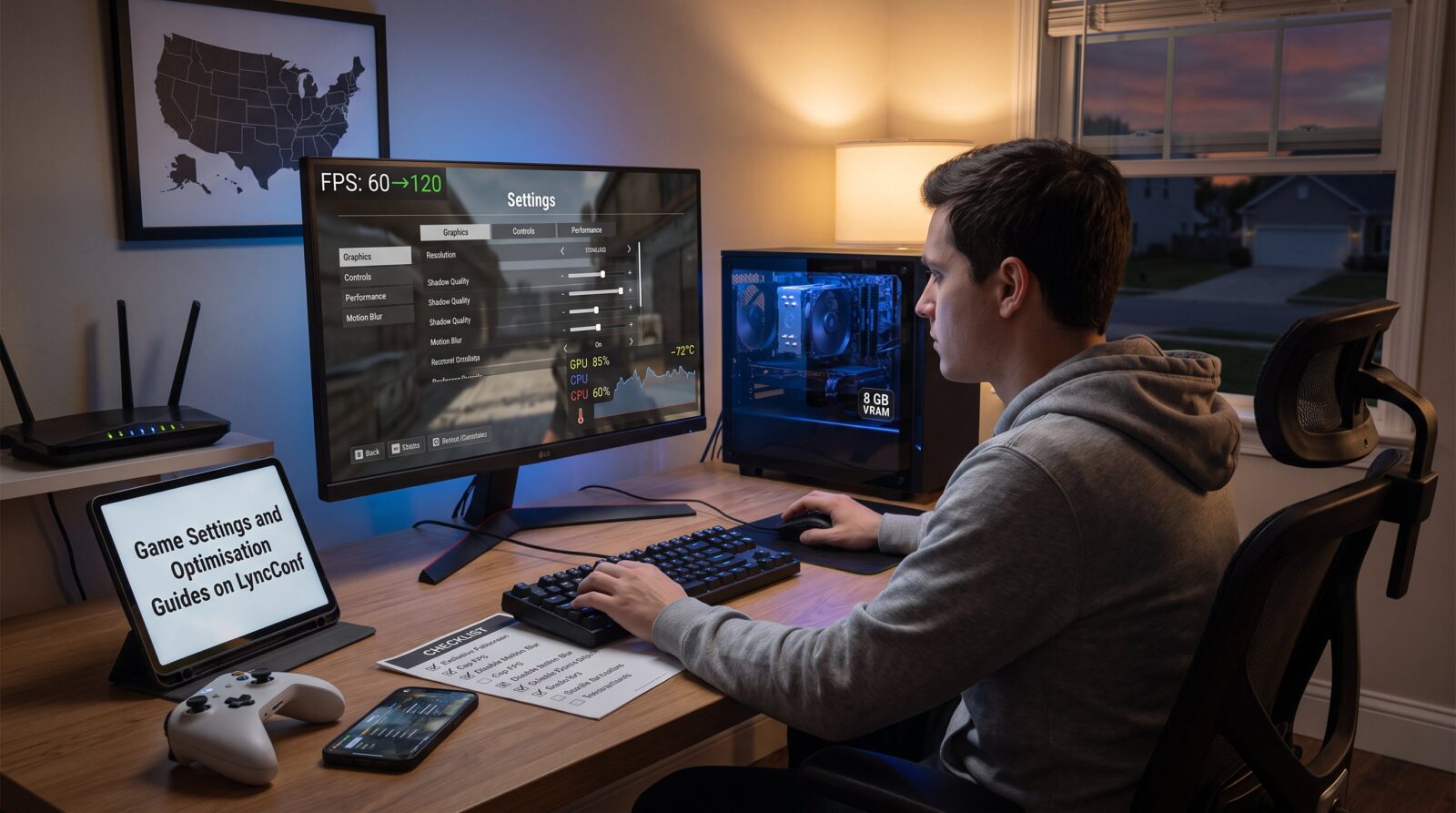
Start with the clear fact: native resolution and display mode provide the largest baseline impact for PC performance. Running at a monitor’s native resolution gives the sharpest image. Dropping one resolution step (for example from 1440p to 1080p) increases frame rates significantly, often 20–40% depending on the GPU and the scene.
After resolution, choose exclusive fullscreen to minimize input lag. Use presets to get a usable baseline, then tune individual items. Lowering shadows and volumetrics yields the largest FPS gains with limited visual loss. Turn off motion blur, film grain, and chromatic aberration for clearer target shapes and slightly higher frames. Cap FPS to a value just under the monitor’s refresh if the CPU or GPU struggles: this avoids waste and reduces power draw. Finally, target textures to VRAM: if a card has 8 GB VRAM, textures can usually stay at high, but 4 GB cards should drop textures before shadows. For readers wanting a full setup guide for serious rigs, the site’s ultimate setup guide contains exact hardware pairing tips in practical terms: lyncconf gaming setup.
Console & Mobile: Controls, HDR, And Power Modes
Fact first: consoles and phones trade battery and heat for raw performance with performance modes. Consoles typically offer Performance mode (higher FPS, lower resolution) or Quality mode (higher resolution, lower FPS). Players should pick Performance for competitive matches and Quality for cinematic play.
On consoles, adjust sensitivity and aim assist for control precision, and calibrate HDR/brightness so dark scenes retain detail without blowing out highlights. Mobile devices include battery profiles, choosing High Performance raises frame rates but increases heat and reduces battery life. A mobile gamer chasing steady 60 FPS must accept shorter sessions or plug in a charger. Controllers on both platforms benefit from custom button layouts: switching to a preferred layout can shave reaction time by a fraction of a second in clutch moments. For cooperative play or streams, LyncConf’s collaboration features improve communication during sessions: read about enhancing the gaming experience with lyncconf communication and collaboration.
A Practical Optimization Workflow You Can Follow
Start with the target: choose an FPS target such as 60 or 120. Find a demanding scene that reliably drops frames, urban combat or large draw-distance vistas work. Use an overlay that reports FPS and CPU/GPU usage so it’s clear whether the GPU or CPU is the bottleneck. If GPU usage is near 100% while CPU sits lower, the player is GPU-bound and should lower graphical detail. If CPU is maxed, reduce draw distance, crowd detail, or background physics.

Apply this step sequence: set native resolution and exclusive fullscreen: disable motion blur, chromatic aberration, and film grain: reduce shadows, reflections, and volumetrics: cap FPS or enable adaptive sync if supported. Next, restore textures and anti-aliasing only if the target FPS remains stable. Stop when the game holds the target FPS with 5–10% headroom. On Windows, complement the in-game changes by enabling Game Mode and hardware-accelerated GPU scheduling, and set the game’s GPU preference to High performance. For players exploring mods, LyncConf’s mod guides explain how community-made enhancements can affect performance and how to tune them safely: see the game mods ultimate guide.
Key Settings Tweaks For Performance Versus Visual Fidelity (Plus Troubleshooting & Maintenance)
High-impact tweaks with low visual cost: disable motion blur, film grain, chromatic aberration, and lens flare: set shadows to medium: turn off unnecessary overlays. These changes often yield the best trade-off, for instance, removing motion blur improves target clarity and can add 5–12% FPS in some engines.
For fidelity lovers, keep textures high and reduce shadows/reflections first. Ambient occlusion and volumetric lighting cost a lot: drop them before textures. If a player uses mods, prioritizing texture compression or lower-resolution packs can recover 2–4 GB VRAM in extreme cases. Troubleshooting starts with drivers: update GPU drivers and the game client, then test. Close background apps and disable overlays like game bars and chat to avoid hidden FPS drains. Monitor temperatures with an app: sustained GPU temps above 85°C indicate poor cooling or excessive settings. Clean dust, reapply thermal paste yearly for older rigs, and use Ethernet for multiplayer to reduce latency. LyncConf’s articles on enhancing mods and the mods overview provide concrete mod-management tips: enhance your mods and mods overview.
Conclusion
Game settings and optimisation guides aim to align options with hardware and player priorities. After a mod changes visuals, controls or performance, how LyncConf explains game mods and compatibility provides the separate source, version and backup context that ordinary settings advice cannot.